> ## Documentation Index
> Fetch the complete documentation index at: https://docs.inrconnect.com/llms.txt
> Use this file to discover all available pages before exploring further.
# Connect Housecall Pro
> Connect Housecall Pro to Inrconnect and start syncing your data
## Get started in three steps
Follow these steps to connect your Housecall Pro account and begin streaming real-time events into Inrconnect.
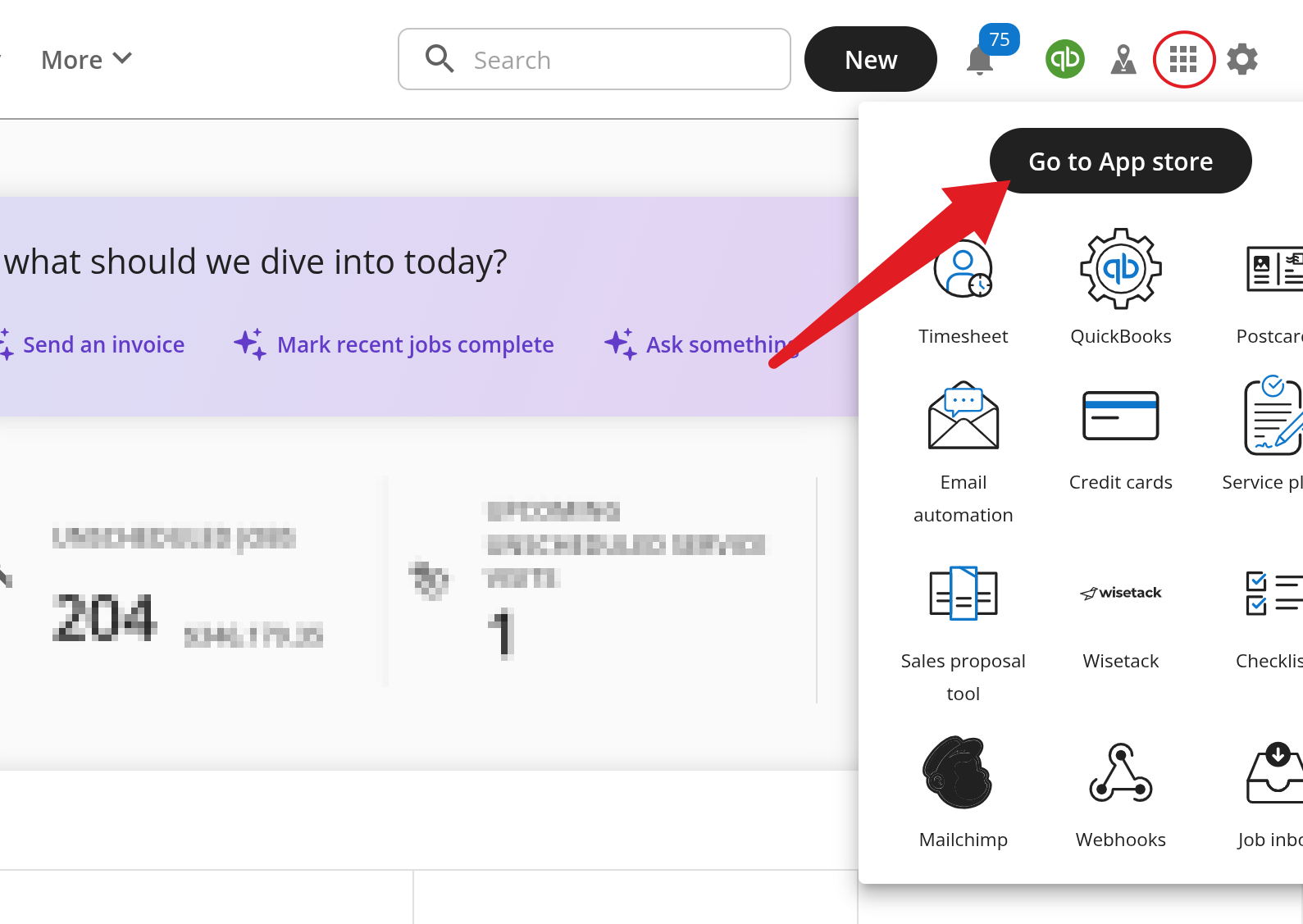
### Step 1: Open the App Store in Housecall Pro
1. Log in to your Housecall Pro account.
2. In the top navigation bar, click the **grid icon** (next to your profile).
3. Select **Go to App store** from the dropdown.
You’ll see all available apps and integrations inside Housecall Pro.
 ### Step 2: Enable the Webhooks App
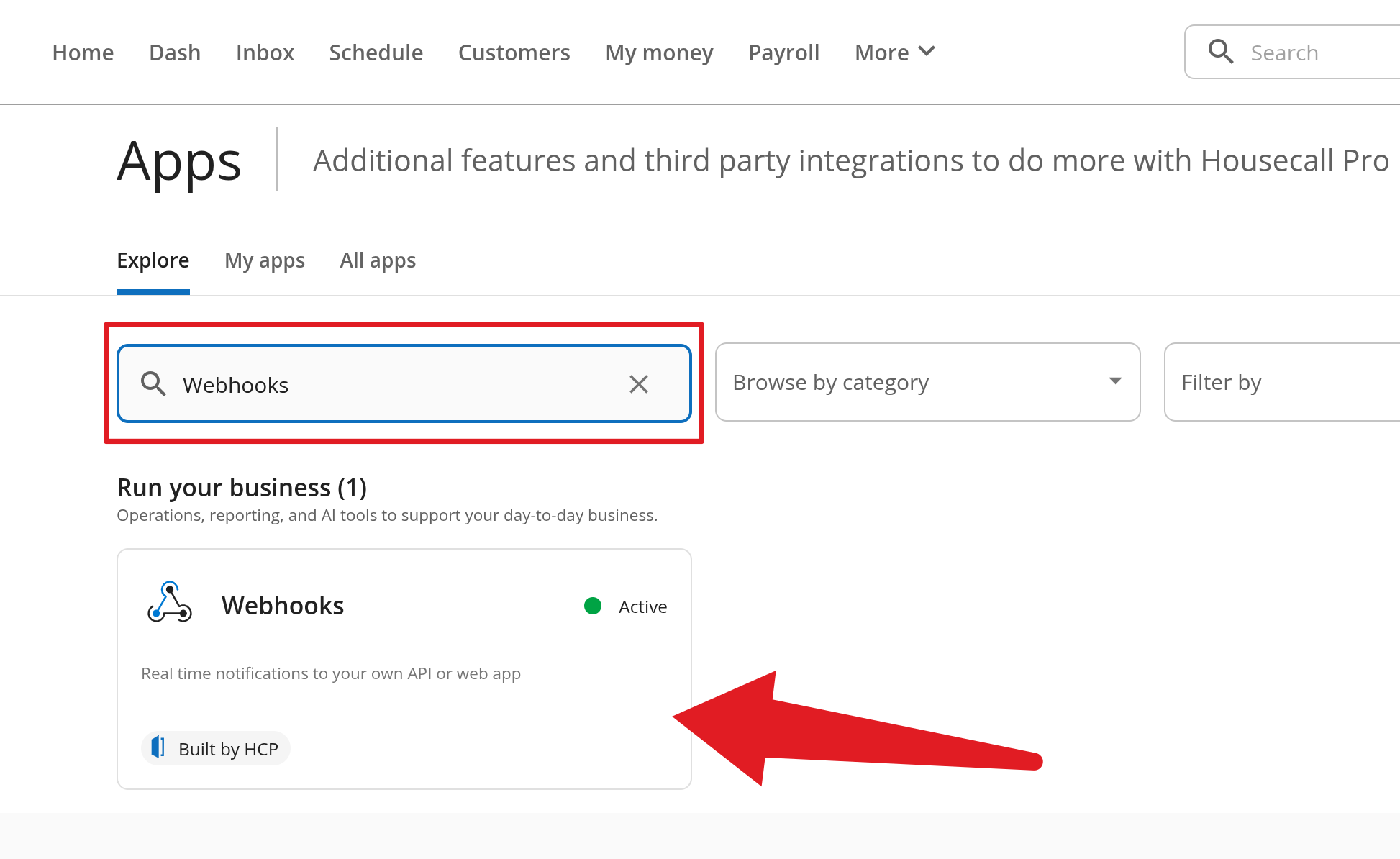
1. In the App Store, use the search bar to look for **Webhooks**.
2. Select the **Webhooks** app (built by HCP).
3. Toggle the app to **Active**.
### Step 2: Enable the Webhooks App
1. In the App Store, use the search bar to look for **Webhooks**.
2. Select the **Webhooks** app (built by HCP).
3. Toggle the app to **Active**.
 ### Step 3: Configure your webhook URL and secret
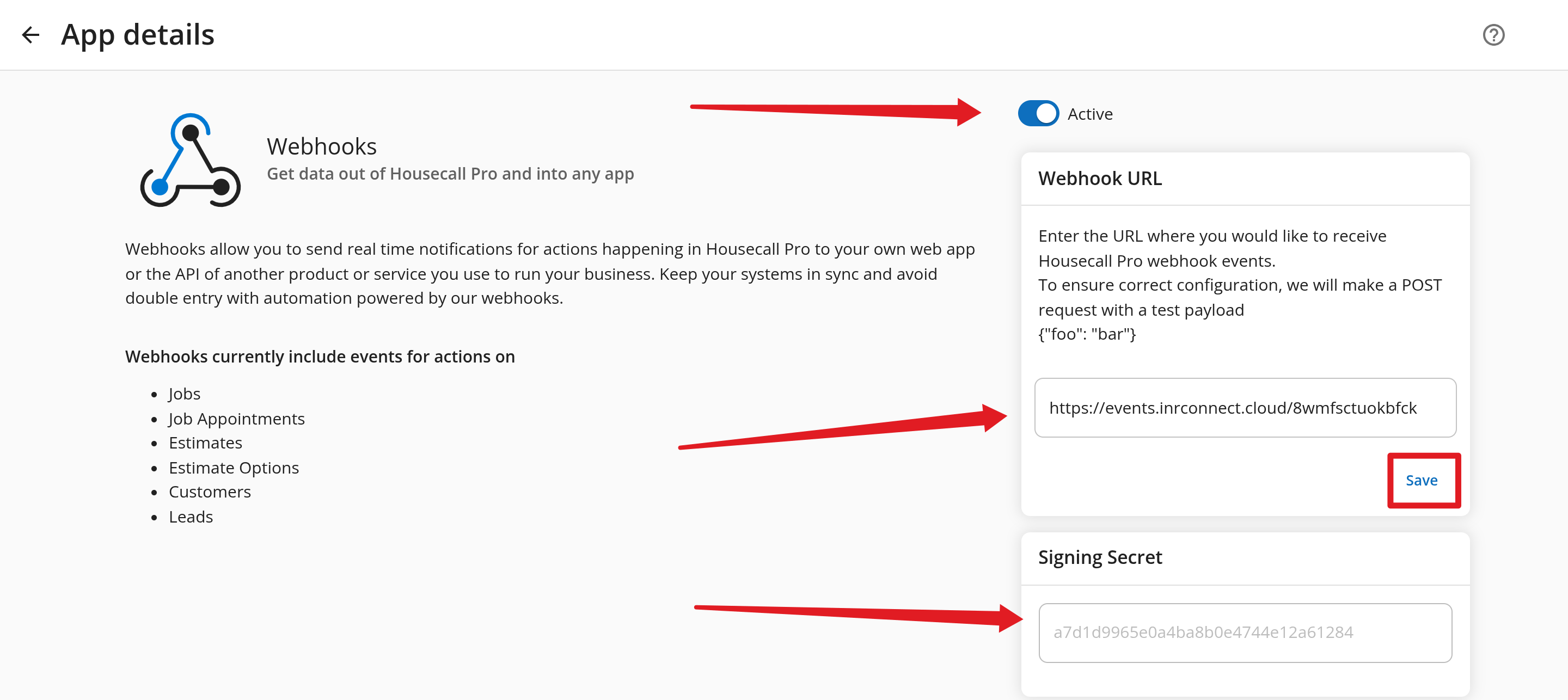
1. Copy your unique Inrconnect webhook URL from the dashboard.\
Example: `https://events.inrconnect.cloud/your-unique-id`
2. Paste it into the **Webhook URL** field in Housecall Pro.
3. Copy the **Signing Secret** provided—this will be needed inside Inrconnect to verify requests.
4. Click **Save**.
### Step 3: Configure your webhook URL and secret
1. Copy your unique Inrconnect webhook URL from the dashboard.\
Example: `https://events.inrconnect.cloud/your-unique-id`
2. Paste it into the **Webhook URL** field in Housecall Pro.
3. Copy the **Signing Secret** provided—this will be needed inside Inrconnect to verify requests.
4. Click **Save**.
 ### Step 4: Select which events to receive
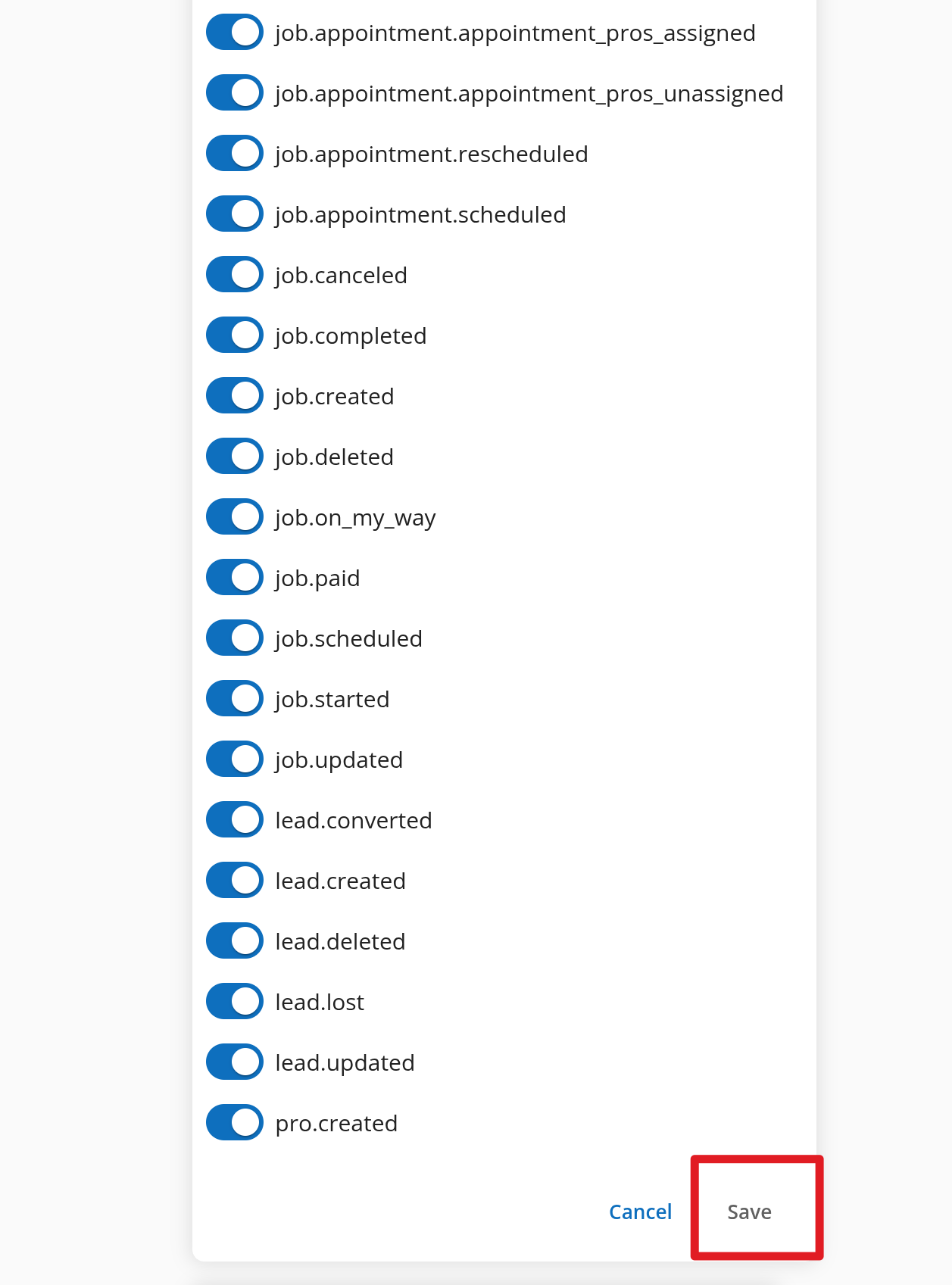
1. Scroll down to the **Enable Webhook Events** section.
2. Turn on the events you want to stream into Inrconnect, such as:
* `customer.created`, `customer.updated`, `customer.deleted`
* `estimate.created`, `estimate.updated`, `estimate.sent`
* `job.created`, `job.scheduled`, `job.completed`, `job.paid`
* `lead.created`, `lead.converted`, `lead.updated`
3. Once you’ve selected your events, click **Save**.
### Step 4: Select which events to receive
1. Scroll down to the **Enable Webhook Events** section.
2. Turn on the events you want to stream into Inrconnect, such as:
* `customer.created`, `customer.updated`, `customer.deleted`
* `estimate.created`, `estimate.updated`, `estimate.sent`
* `job.created`, `job.scheduled`, `job.completed`, `job.paid`
* `lead.created`, `lead.converted`, `lead.updated`
3. Once you’ve selected your events, click **Save**.
 \\
\\
 ***
## Next steps
Once webhooks are connected:
See jobs, estimates, and invoices flowing into your Inrconnect dashboards.
Build custom reports using the synced webhook data.
Share access with your team and assign roles for collaboration.
Use the Inrconnect API to extend and automate your reporting workflows.
**Tip:** You can return to the Housecall Pro webhook settings at any time to add or remove events.
***
## Next steps
Once webhooks are connected:
See jobs, estimates, and invoices flowing into your Inrconnect dashboards.
Build custom reports using the synced webhook data.
Share access with your team and assign roles for collaboration.
Use the Inrconnect API to extend and automate your reporting workflows.
**Tip:** You can return to the Housecall Pro webhook settings at any time to add or remove events.